Automatically respond to Windows prompts and information requests Archive

How to Dismiss System Tray Notification “Balloons”

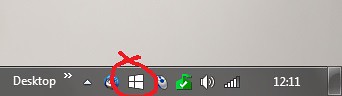
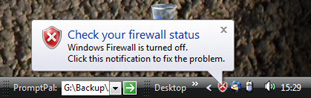
System tray balloons such as the one below were originally used as a way of alerting you without getting in the way of your current task.

Unfortunately, they can be an annoying distraction if they’re not carrying relevant information. For example if you temporarily turn off Windows’s inbuilt firewall to troubleshoot a network problem, you’ll get a balloon pointlessly telling you what you’ve just done. A battle of wills between you and the computer now ensues: can you ignore the balloon until it closes, or will you succumb and interrupt your troubleshooting to hit the balloon’s close box? Of course you could just disable such warnings completely, but that’s generally not a good idea.

Happily, PTFB Pro can now dismiss these tedious little attention seekers. Here’s how:

  1. When the balloon next appears, create a new single-press item (not a macro)
  2. Target the single press item on the balloon’s close box

The resulting item can be edited just like any other. You can for example set a trigger delay of 1 to 2 seconds so that you get to read the notification, but it closes before it becomes an irritation. The only difference is that on the General page of the item’s properties, the Action section now carries an explicit “Close Tooltip” option.

Find out more about boosting your productivity with autoclicks and macros.
CLICK HERE to download a free 30 day trial, no strings attached. If you aren’t entirely happy simply uninstall!

How To Automatically Respond to Irritating Prompts and Popups

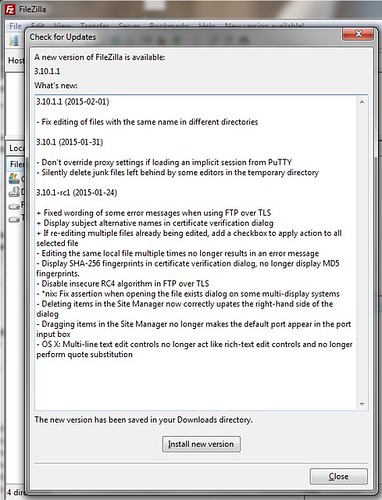
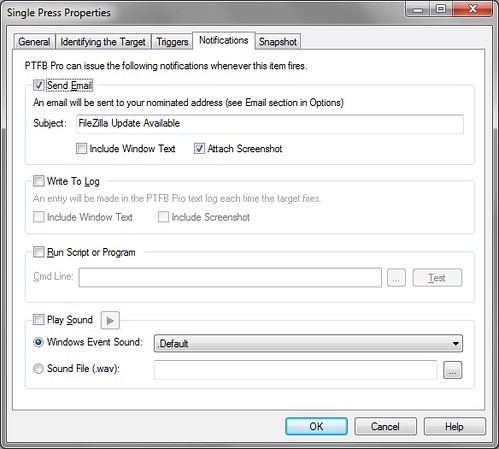
PTFB Pro’s auto-response feature can be used to help minimize the disruption and irritation caused by today’s attention-craving programs. Tell PTFB what buttons to press and when, and you’ll finally be free of your computer’s nagging requests to check for updates, to change your default browser, and to make sure it’s “OK” to do the very thing you’ve just told it to do. It is, in effect, a “don’t show this again” option for the many prompts and messages that don’t have one.

  • Automatically respond to confirmation requests.
  • Eliminate popups.
  • Auto-fill forms.
  • Quick & easy to use.

How to do it …

Next time an irritating dialog or confirmation screen appears :

  1. Open up PTFB Pro’s main window by clicking on its tray icon
  2. Click on “Single Press”. The cursor will now change to a hand with an outstretched finger.
  3. Move the cursor over the button you want to be pressed and click the mouse (If you want PTFB Pro to carry out a more complex task use the ‘macro’ option instead).
  4. That’s all there is to it!

Finally, put PTFB Pro to work by clicking “Start Watching”, or by pressing the close box in the top-right corner. PTFB Pro will minimize to the system tray and keep watch for offending windows and dialogs. When they appear it will handle them for you.When you record a new ‘single press’ (or macro) item, PTFB Pro stores information that uniquely identifies the window that you are acting upon. By default, PTFB Pro will run your new ‘single press’ (or macro) every time that window appears in the future. If you prefer, you can tell PTFB Pro to run your macro according to schedule, command line or even in response to a short cut key. You can also tweak a whole host of settings to fine tune your macro, and even configure the default behavior for newly created macros.

Find out more about boosting your productivity with autoclicks and macros.
CLICK HERE to download a free 30 day trial, no strings attached. If you aren’t entirely happy simply uninstall!

How to automatically login to applications when they start up

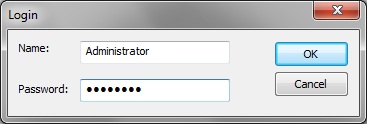
Let’s say you have a program that requires a login each time you use it – maybe a database or source control application. If the security angle isn’t an issue (maybe everyone in the office knows the password, or maybe you’re the sole user), why not let PTFB Pro handle the login for you?

How to do it …

Next time an irritating dialog or confirmation screen appears :

  1. Open up PTFB Pro’s main window by clicking on its tray icon
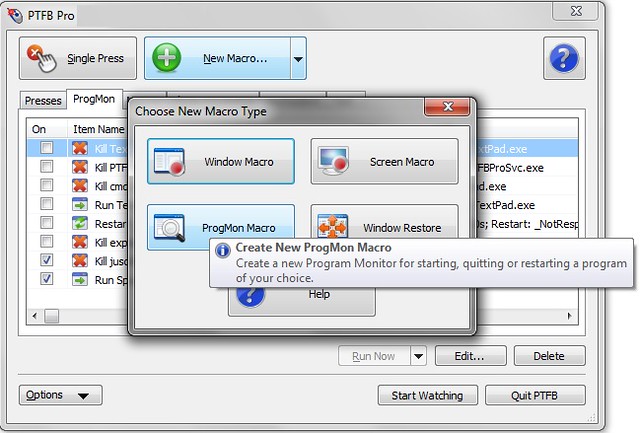
  2. Click on “New Macro…” and choose “Window Macro ”
  3. Click the hand-shaped cursor on the login window and proceed with the login just as you would normally.
  4. That’s all there is to it!
    As soon as you’ve entered your name and password into the login screen and hit OK, macro recording will end automatically. Your new macro is ready to perform the login for you automatically from now on!To put PTFB Pro to work, click “Start Watching”, or press the close box in the top-right corner. PTFB Pro will minimize to the system tray and keep watch for offending windows and dialogs. When they appear it will handle them for you.You may wish to tweak your new macro’s settings after you’ve created it. For example, you might want to lower the initial trigger delay from the default value of 1 second to zero, so that the macro fires instantly whenever the login window appears.

Find out more about boosting your productivity with autoclicks and macros.
CLICK HERE to download a free 30 day trial, no strings attached. If you aren’t entirely happy simply uninstall!

How to stop the Windows Update Restart Nags using PTFB Pro’s autoclicker

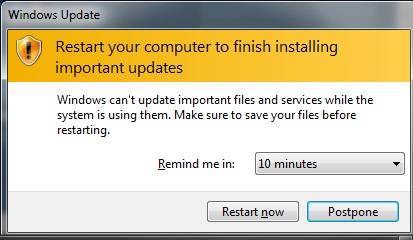
Generally speaking Windows Update is a good thing, but on Vista and Windows 7 there is one aspect of it that can be exceedingly annoying, and that is the Windows Update Restart dialog:

The accursed Windows Update Restart Prompt

How is it that this damned thing always, and I mean always, pops up when you’re in the middle of work that requires your undivided attention? Yes, you can postpone it, but just like the Terminator it’ll be back again, and again, gleefully interrupting you each time.

Some sites advise dealing with this irritating popup by stopping the Windows Update service. This is complete overkill, and probably a bad idea for a whole host of reasons. PTFB Pro gives you a far more elegant way to keep this well intentioned nuisance under control:

  1. Open up PTFB Pro’s main window.
  2. Hit “Single Press”, then click the mouse anywhere on the Postpone button in the Windows Update Restart prompt. This creates a new single press or “autoclicker” item. Note that you could use the macro recorder for the restart nag, but that’s overkill because we only need PTFB Pro to hit the Postpone button automatically.
  3. Make sure the new item has an appropriate initial delay. In my case, I set the delay right down to zero. I have a particular dislike for the restart nag and would rather not see it at all if I don’t have to.
  4. Hit Start Watching on PTFB Pro’s main screen, and you’re done!

Now PTFB Pro will keep postponing the restart for you automatically. It’ll happen so fast you’ll scarcely see the prompt screen and you’ll be able complete your work in peace, restarting only at a time that is convenient to you. What’s more, all this has been done without interfering with the Windows Update service in the slightest.

Find out more about boosting your productivity with autoclicks and macros.
CLICK HERE to download a free 30 day trial, no strings attached. If you aren’t entirely happy simply uninstall!

How to Supress the Outlook Warning : “A program is trying to access”

When virus writers & spammers realized that they could make use of Outlook’s built-in macro language (VBA) to perform mass-mailings, Microsoft responded by issuing a security patch that has been in Office ever since. The patch intercepts external attempts to use MAPI to send emails, and forces the user to approve the outgoing emails by issuing the following prompt:

“A program is trying to access e-mail addresses you have stored in Outlook. Do you want to allow this?”

This is a commendable security feature, but it’s terribly annoying if you run software (or a script) that legitimately sends email via MAPI.  Perhaps the most frustrating thing about it is that you’re forced to wait for 5 seconds before you can signal your approval; in other words it’s guaranteed to interrupt your work flow and have you gnashing your teeth. It’s deliberately user-unfriendly!

Happily PTFB Pro can handle this annoyance for you, and it’s very easy to set up:

1. Open up PTFB Pro’s main window

2. Click on “Single Press” (you MUST use single press for this rather than a macro)

3. Move the cursor over the appropriate button on the Outlook security prompt and click the mouse

4. Go back to PTFB Pro and hit “Start Watching” to put PTFB Pro into action.

That’s all there is to it. From now on PTFB Pro will automatically respond to the Outlook security prompt for you, and the best thing is PTFB Pro doesn’t have to wait 5 seconds – it’ll do it instantly if you want (just reduce the default initial delay from 1 sec to zero). You can safely leave your PC chugging through your script and go have a coffee, and PTFB Pro will keep things running smoothly in your absence.

On a final note, please bear in mind that Microsoft added this security feature to Outlook with the best of intentions. PTFB Pro can’t discriminate between legitimate attempts to send email and the work of rogue scripts and viruses – if you use PTFB Pro to override the warning dialogs, you assume the associated risks.

Find out more about automating your workflow with Macros.
CLICK HERE to download a free 30 day trial, no strings attached. If you aren’t entirely happy simply uninstall!

Stop Annoying Balloon Messages

Those system notification balloon messages that Windows pops up are meant to be less distracting than traditional message boxes, but they can be really annoying at times.

How about “This USB device can perform faster”  ? Well if the device in question is just being hooked up temporarily to transfer a few files, you probably don’t care that it may not be operating at full speed. But I bet you wish Windows would shut up about it!

Or “Windows has blocked some startup programs”, right after you’ve intentionally used MSConfig to troubleshoot some programs that load at startup. You know perfectly well what you’ve done, you don’t need Windows to keep telling you about it.

In the same vein are all those security center warnings that state the obvious. Turn off the firewall or disable the antivirus to see if it’s interfering with something else on your PC and you get harrassed by balloon messages until you eventually relent and turn it back on.

Balloon Annoyances

A quick search will give you some methods for getting rid of these messages, but in most cases they’re seriously flawed. Take the USB optimization message for example. On pre-Windows 7 systems you can bring up the properties on the USB controller and tick the box marked “Don’t tell me about USB errors”. That certainly stops the optimization message, but it also stops a whole host of other USB messages that you might need if a USB device is genuinely having problems. There are also registry hacks that get rid of particular classes of balloon messages, but again that’s using a sledgehammer to crack a nut, especially if it’s only a specific couple of messages that bug you.

PTFB Pro offers a much cleaner, more appropriate solution. You can target the specific balloon messages that irk you, and let PTFB Pro close them so quickly they’ll never get a chance to bug you again. Here’s how to go about it:

  • When the offending balloon message next appears, open up PTFB Pro’s main screen, hit “Single Press” and click anywhere on the balloon.

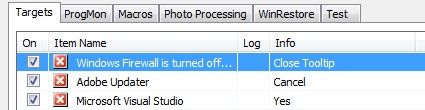
One step – that’s all there is to it. Optionally you could edit the new item and tweak a couple of settings. For example you could give it a more meaningful name, or head to the Triggers page and either zero the initial delay (to blow the balloon away the instant it appears) or set a short delay so that message still shows but only for a very short time. The  best thing is it’s trivial to reverse the suppression of the message; all you have to do is untick the associated item in PTFB Pro:

Toggling single press

Find out more about boosting your productivity with autoclicks and macros.
CLICK HERE to download a free 30 day trial, no strings attached. If you aren’t entirely happy simply uninstall!

How to view a Password Protected PDF without entering the password every time

Password protected PDF (Adobe Acrobat) files are often used for books, guides, training manuals and other publications that you can buy online. Once you’ve bought the document, you’re given a download link and a password. Adobe Acrobat Reader requires you to enter the password every time you want to view the document, and this can be annoying if it’s something that you refer to frequently. The last thing you need in this security-obsessed age is yet another password to remember. The easiest way to fix this is to get PTFB Pro to enter the password for you automatically.

Here’s a step-by-step breakdown of how to get PTFB Pro to enter the password for the protected PDF automatically:

1) Open the password protected PDF in Adobe Acrobat Reader. Typically this just means double-clicking the document!

2) You’ll now see Adobe Reader prompting for the password. Don’t enter the password just yet!

PDFPassword

3) Open up PTFB Pro’s main window (e.g. by clicking on its mouse icon in the system tray).

4) Click on “New Macro” and choose “Window Macro”

PTFB Choose Macro

5) Click the hand cursor on the password window to start recording, type in your password and hit OK.

That’s it – you’re done! The next time you go to open the document, PTFB Pro will enter the password for you automatically. That’s one less password for you to remember, less typing, and quicker access to the book, guide, or manual that you’ve paid for.

Find out more about boosting your productivity with autoclicks and macros.
CLICK HERE to download a free 30 day trial, no strings attached. If you aren’t entirely happy simply uninstall!